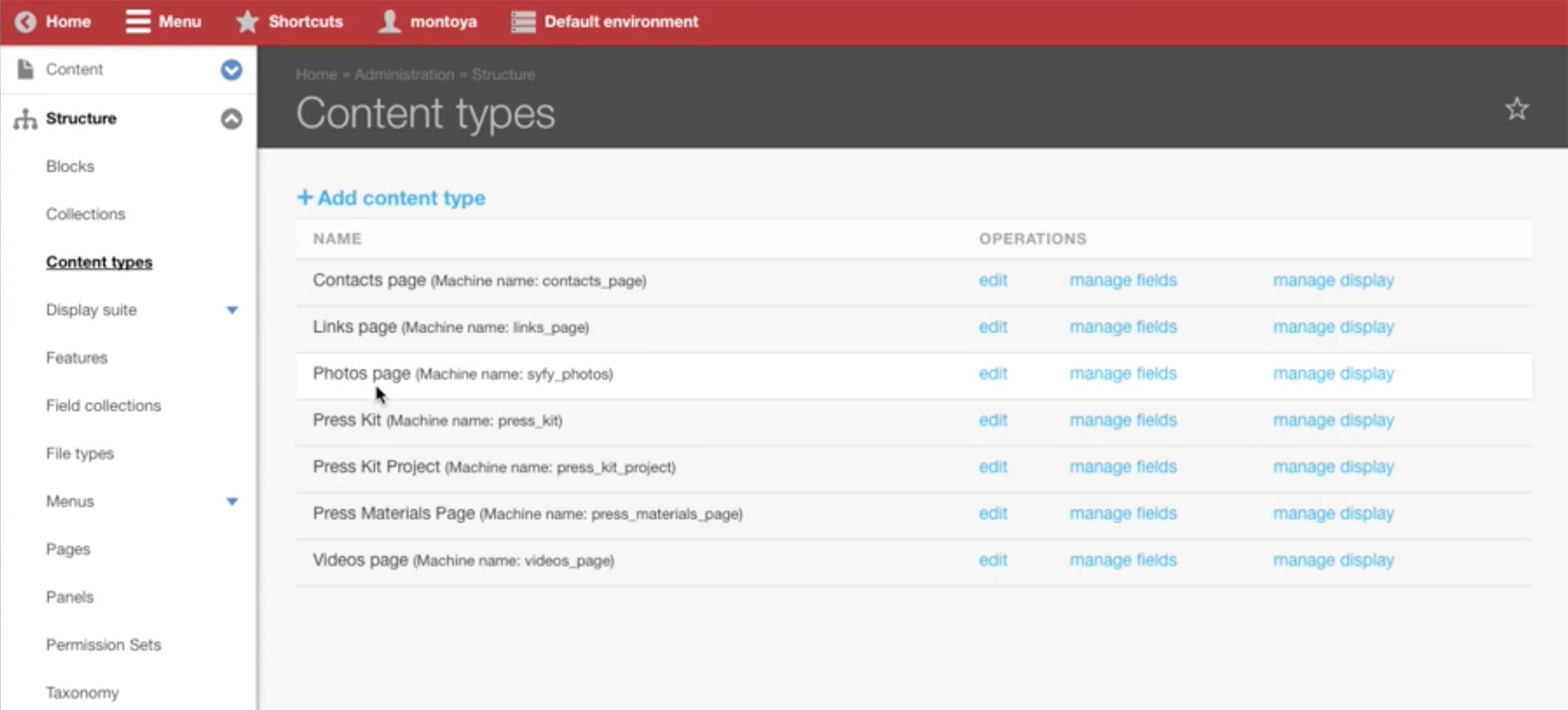
This is all the Content Types that exists for the Press Sites. They are hierarchized in the following order, from the largest to the smallest: Press Kit Project > Press Kit > All the pages
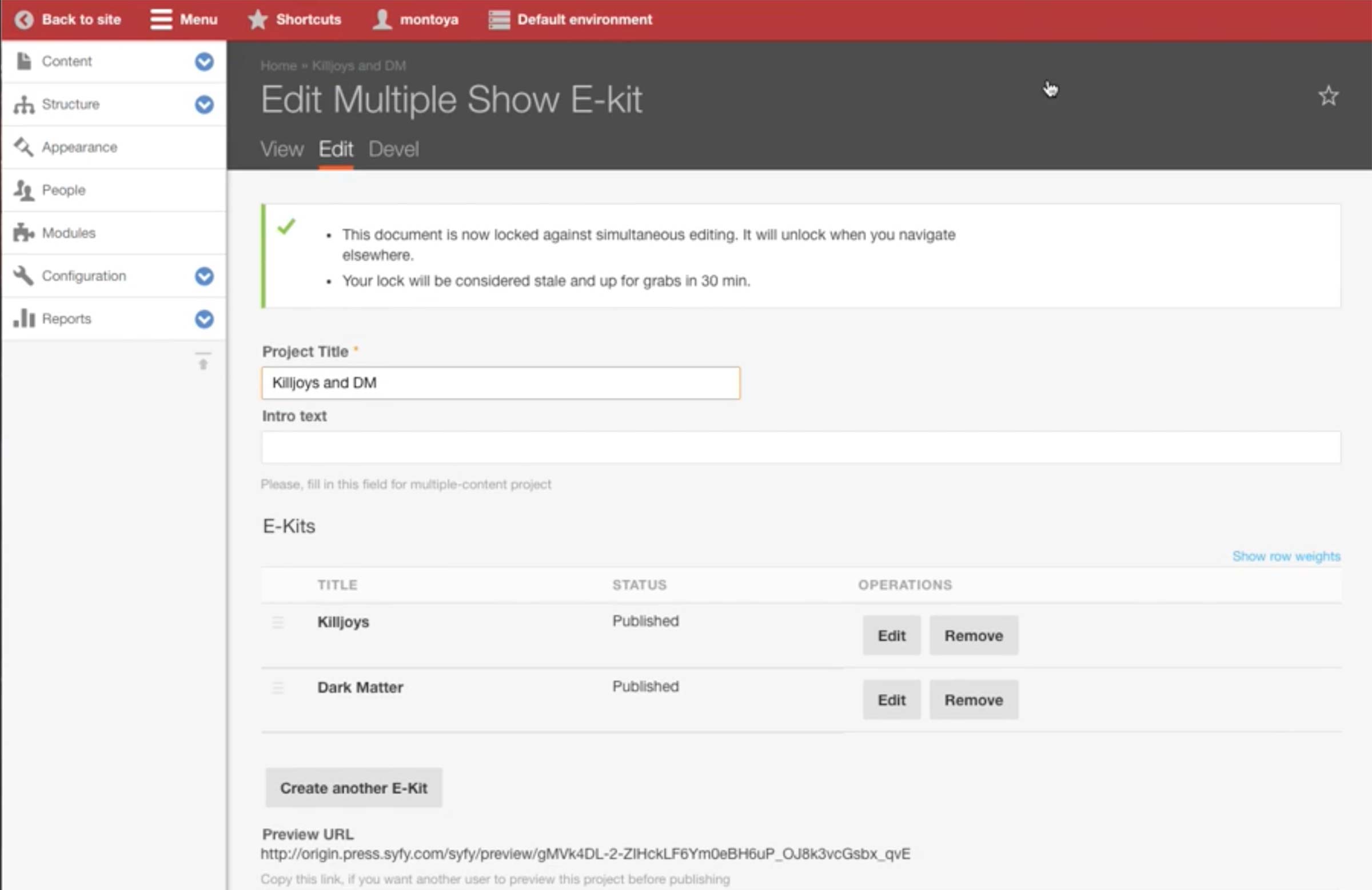
If there are multiple shows to show in a single Press Kit, tech lead creates Press Kit Project. Inside, he can associate Press Kit Content Type that are already created, or create a new one by clicking Create another E-Kit. He can click Edit button to edit the specific Press Kit.
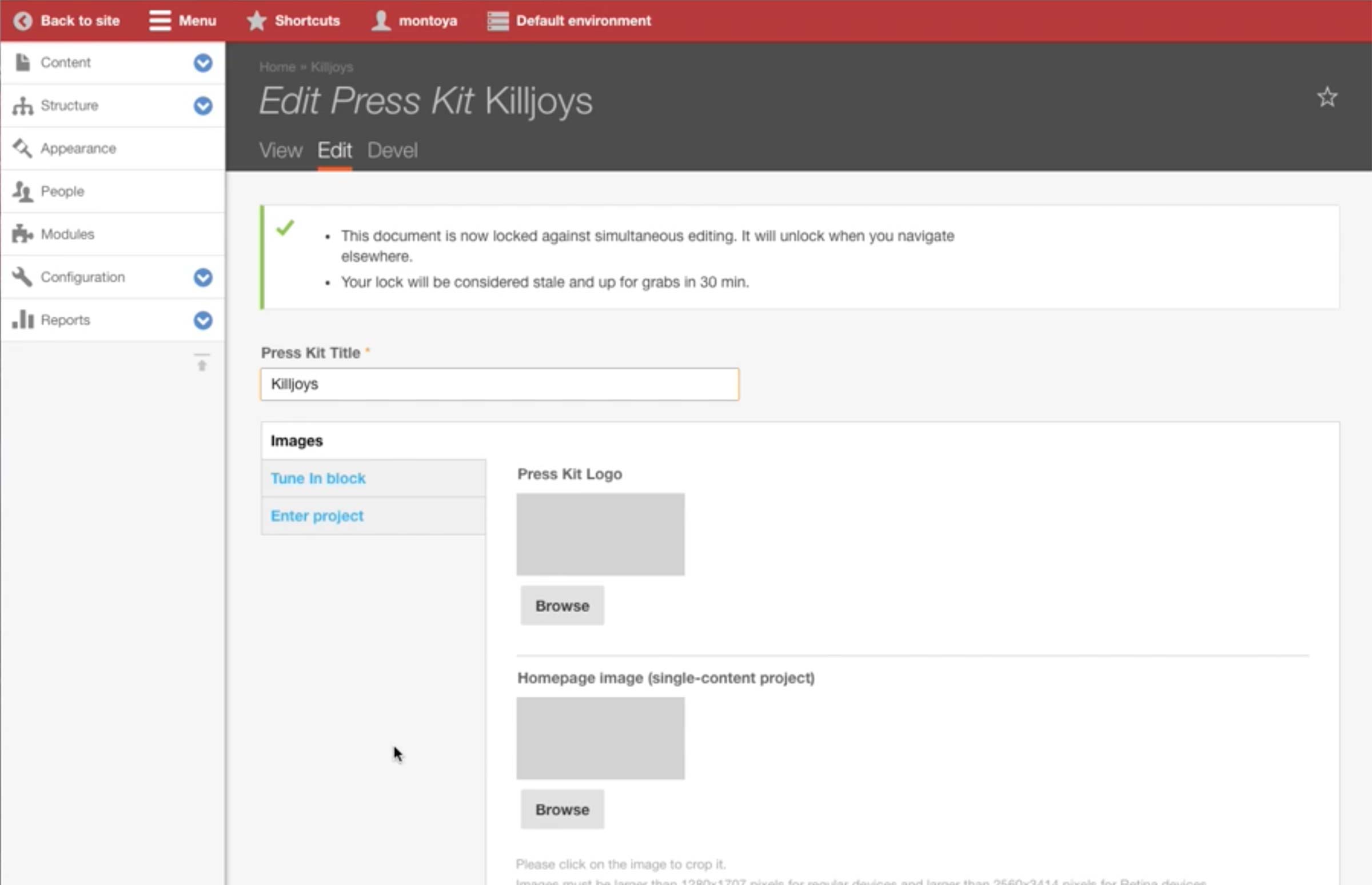
This is a page to edit a single Press Kit. Title of the Press Kit goes in the topmost field. There are separate image fields based on the usage:
Press Kit Logo: Upload a logo when the logo is being used.
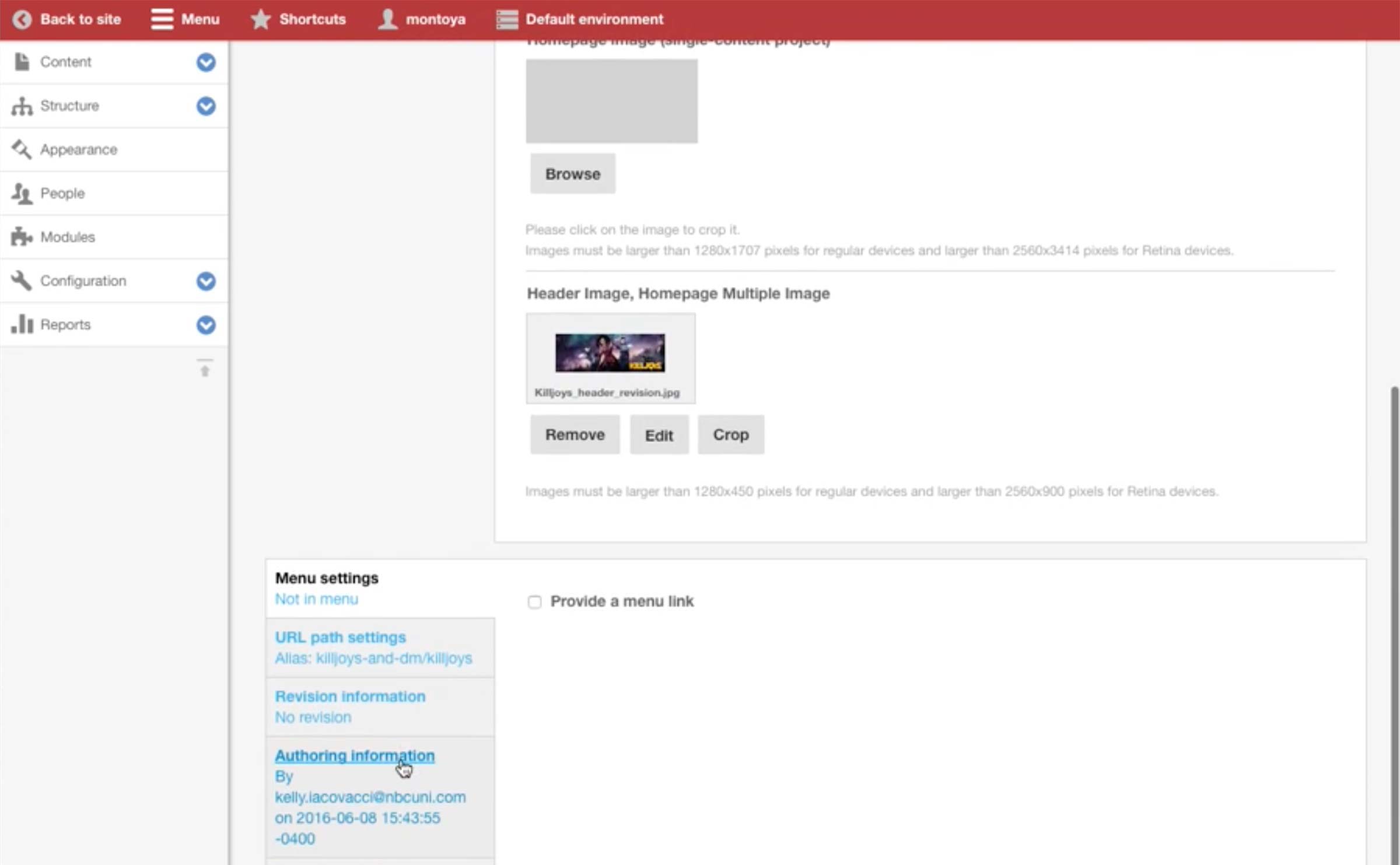
Homepage Image (single-content project): When there is no Press Kit Project above this Press Kit, the image here would be used as the splash image in the very first page.
This Press Kit belongs to a Press Kit Project, which only requires a Header Image.
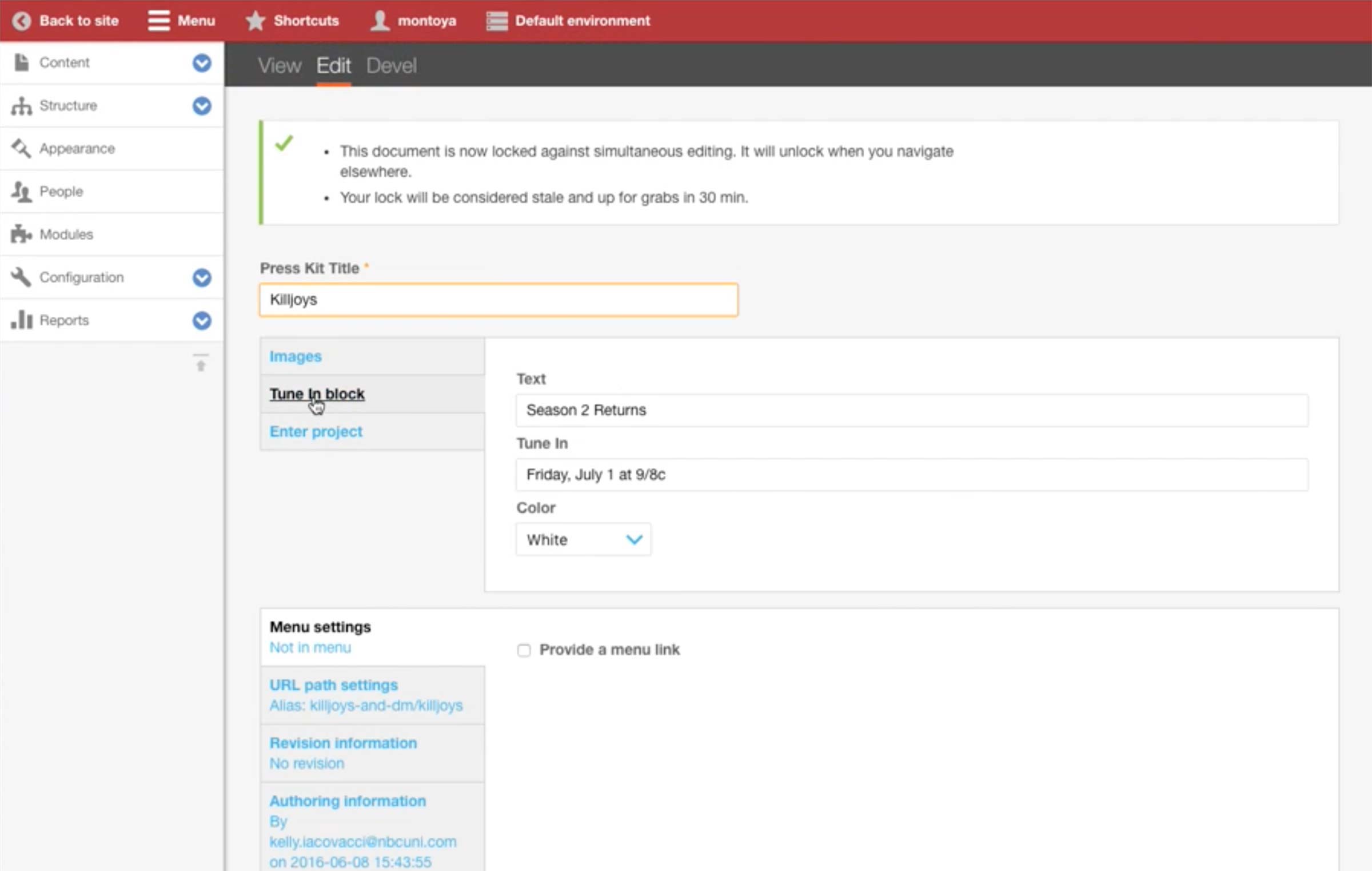
In Tune In block tab, press team enters the tune in information with the leading text. This appears in the landing page as well as in the header area.
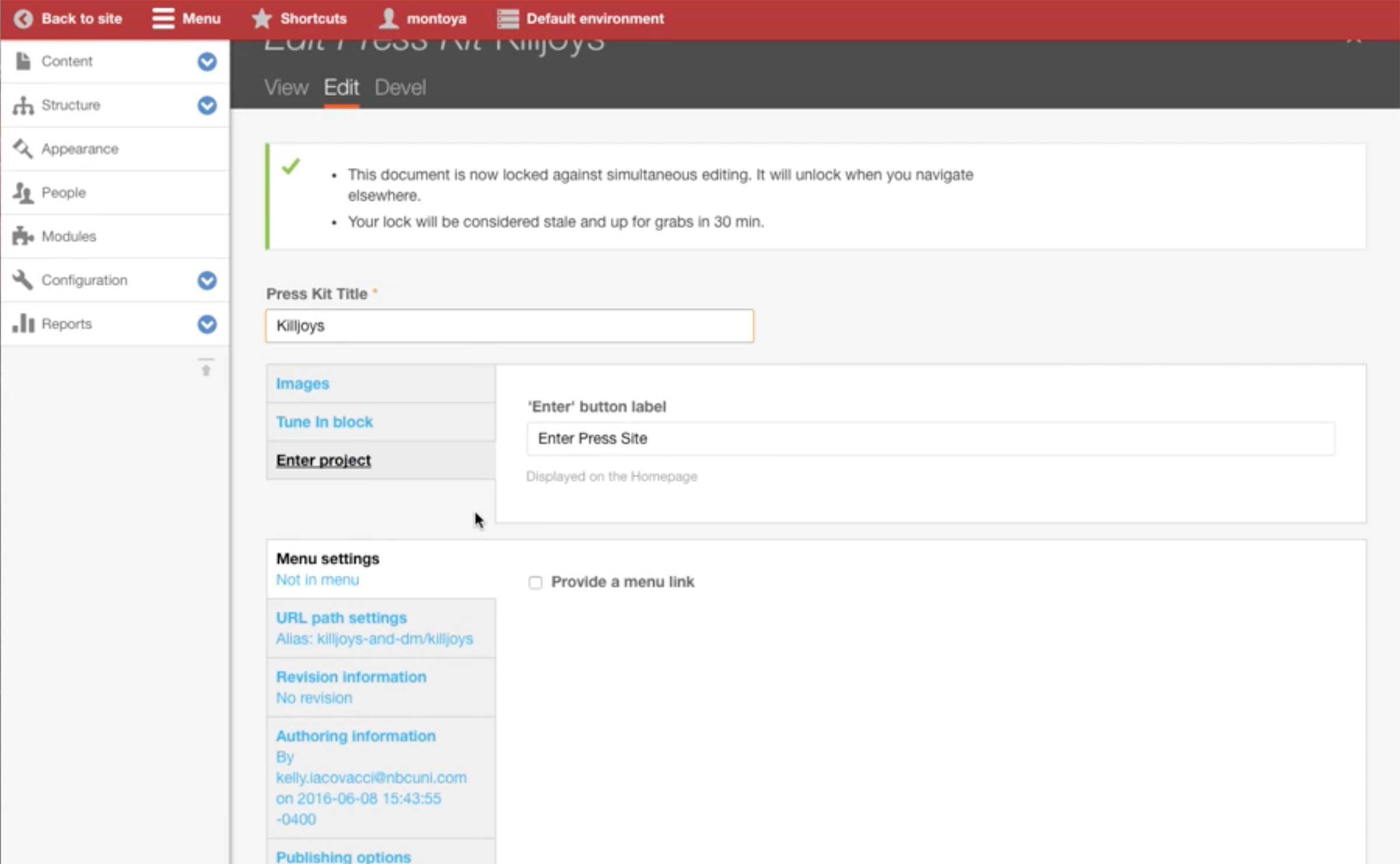
In Enter project tab, the label of the button on the landing page can be changed.
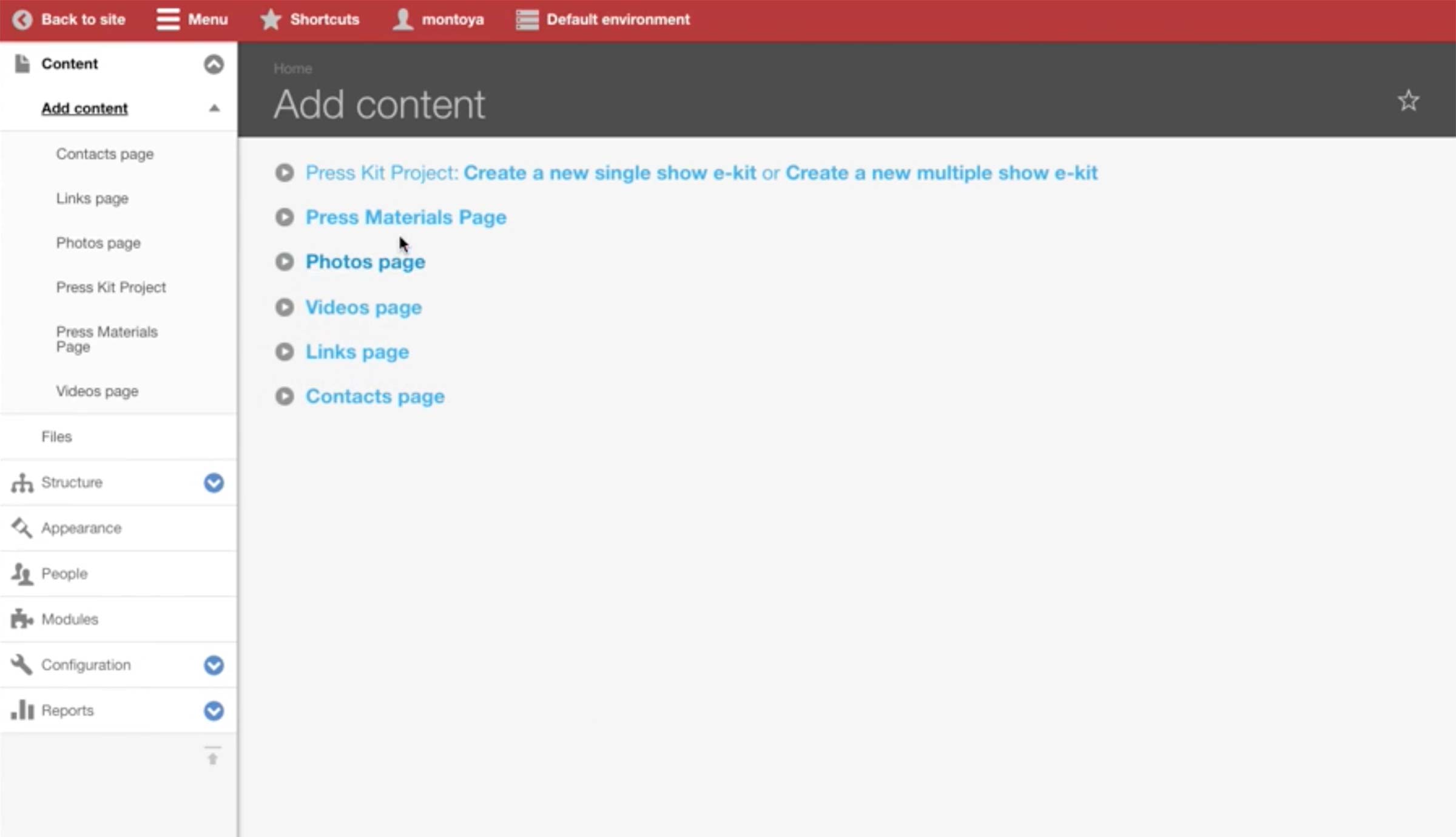
After setting up the Press Kit, the press can create appropriate pages from Add content menu.
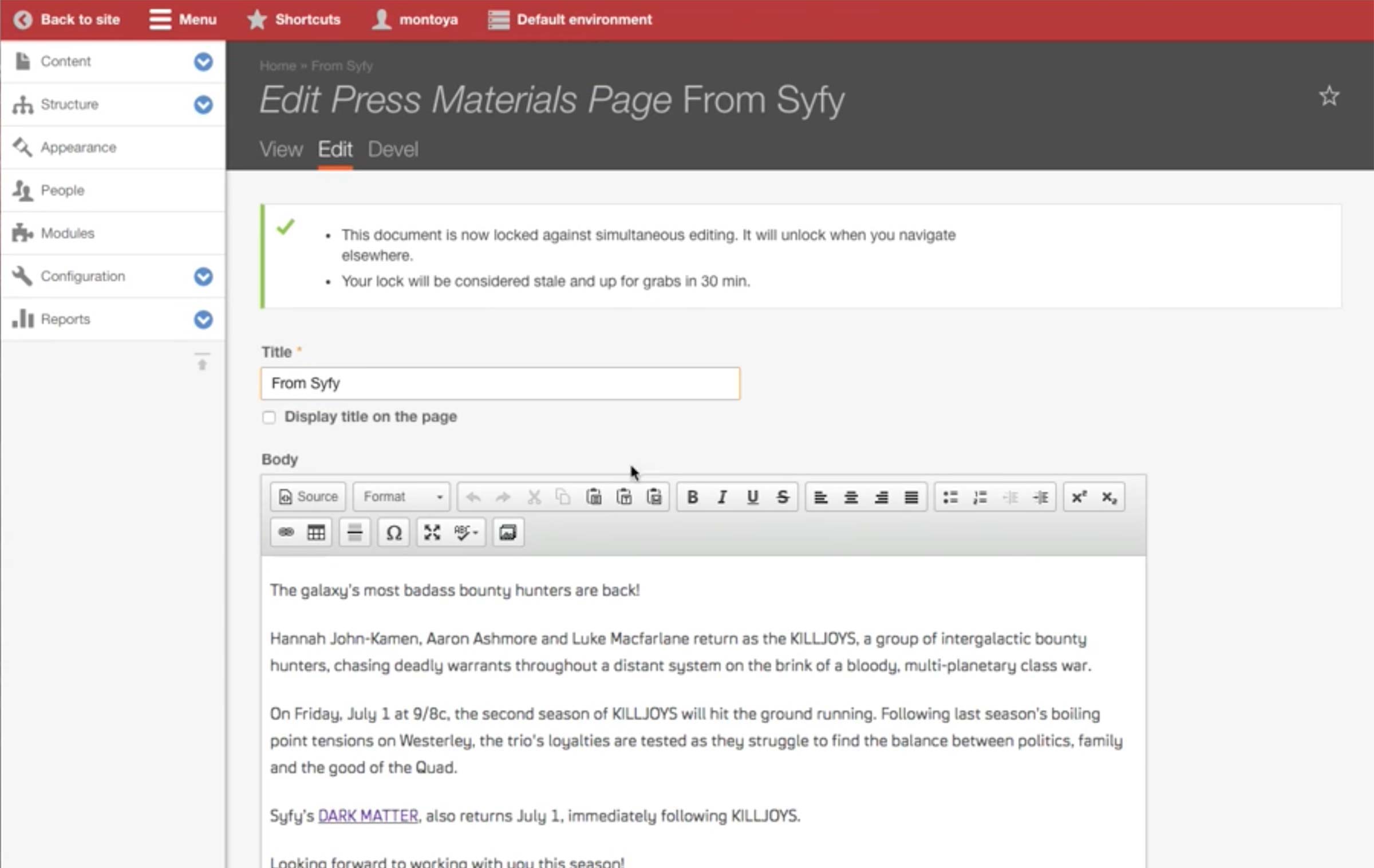
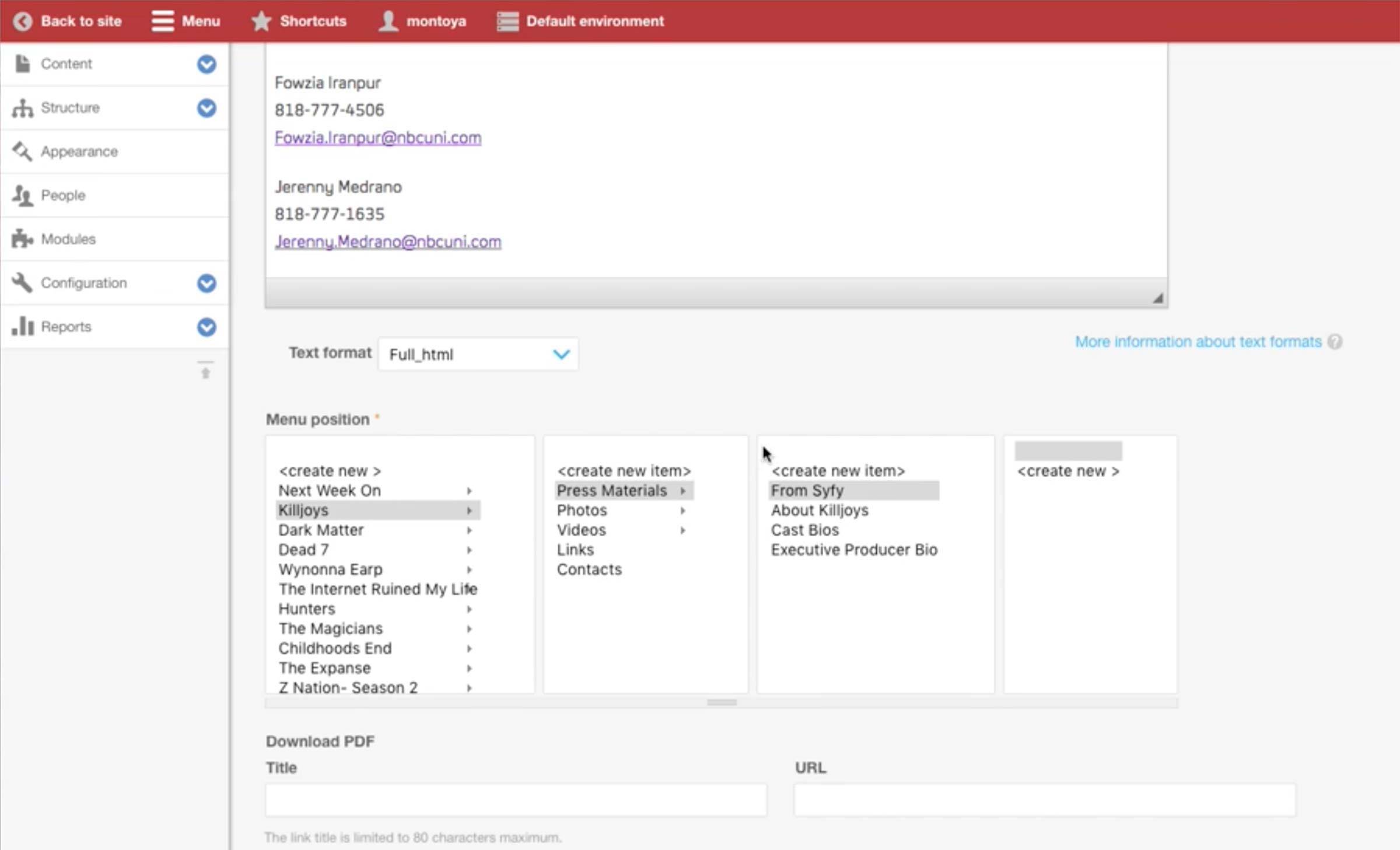
This is an example of Press Materials page. First, the press team fills out the title and body text.
Below is the Menu position section that determines which Press Kit and menu would link to this page.
New menu item can be created by clicking create new. There can be up to 5-level deep menu items.
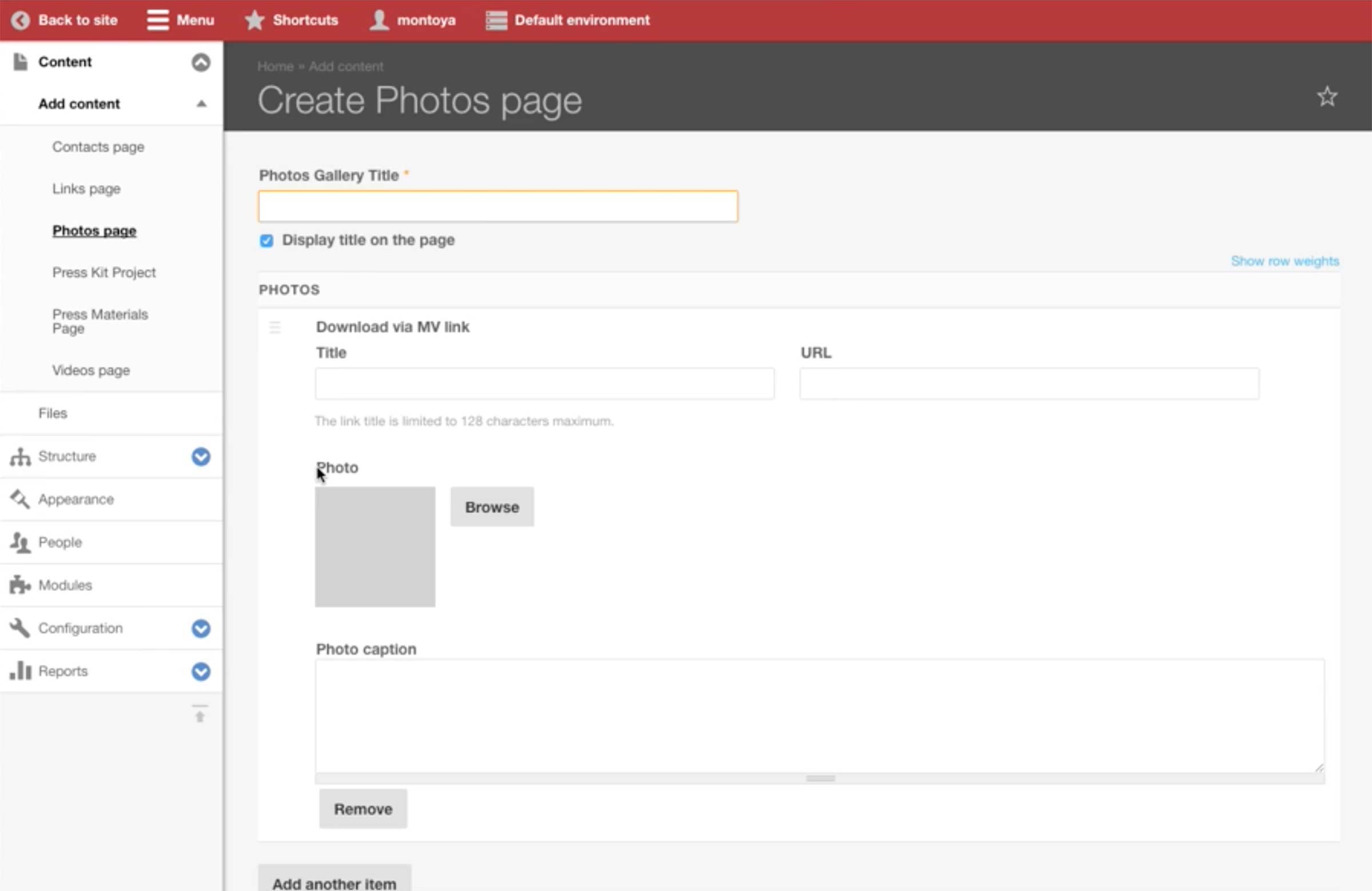
This is a new Photos page. Photos page always features a single gallery, and each photo and caption can be added with the interface in the Photos section.
If the photo is from Media Village, press team adds the link label and URL.
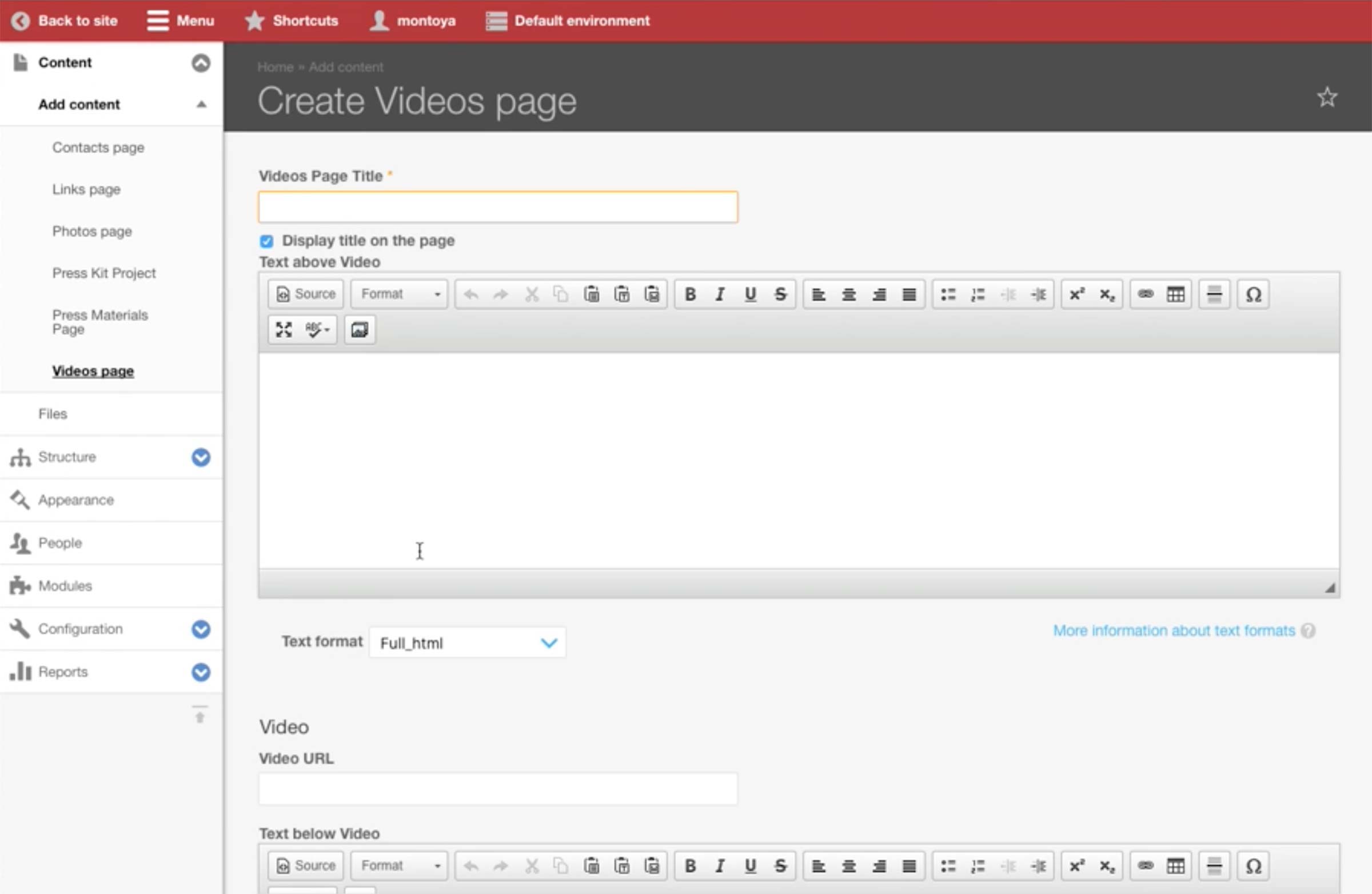
This is a new Videos page.
Videos Page Title: This goes to the subnavigation and can also be displayed on the page. (e.g. EPISODE 1- "YEAR OF THE MONKEY" (4/18, 9PM))
Text above Video: The video page usually has the text at the top of the page. (e.g. *For media review purposes only. Not for link, forwarding, broadcasting or public display.)
Text format: The options are limited by the account’s permission. The editors will only see WYSIWYG and Plain Text, whereas the tech admin has full HTML access.
Video URL: URL of the Vimeo video.
Text below Video: The text that goes below the player. No real use case.
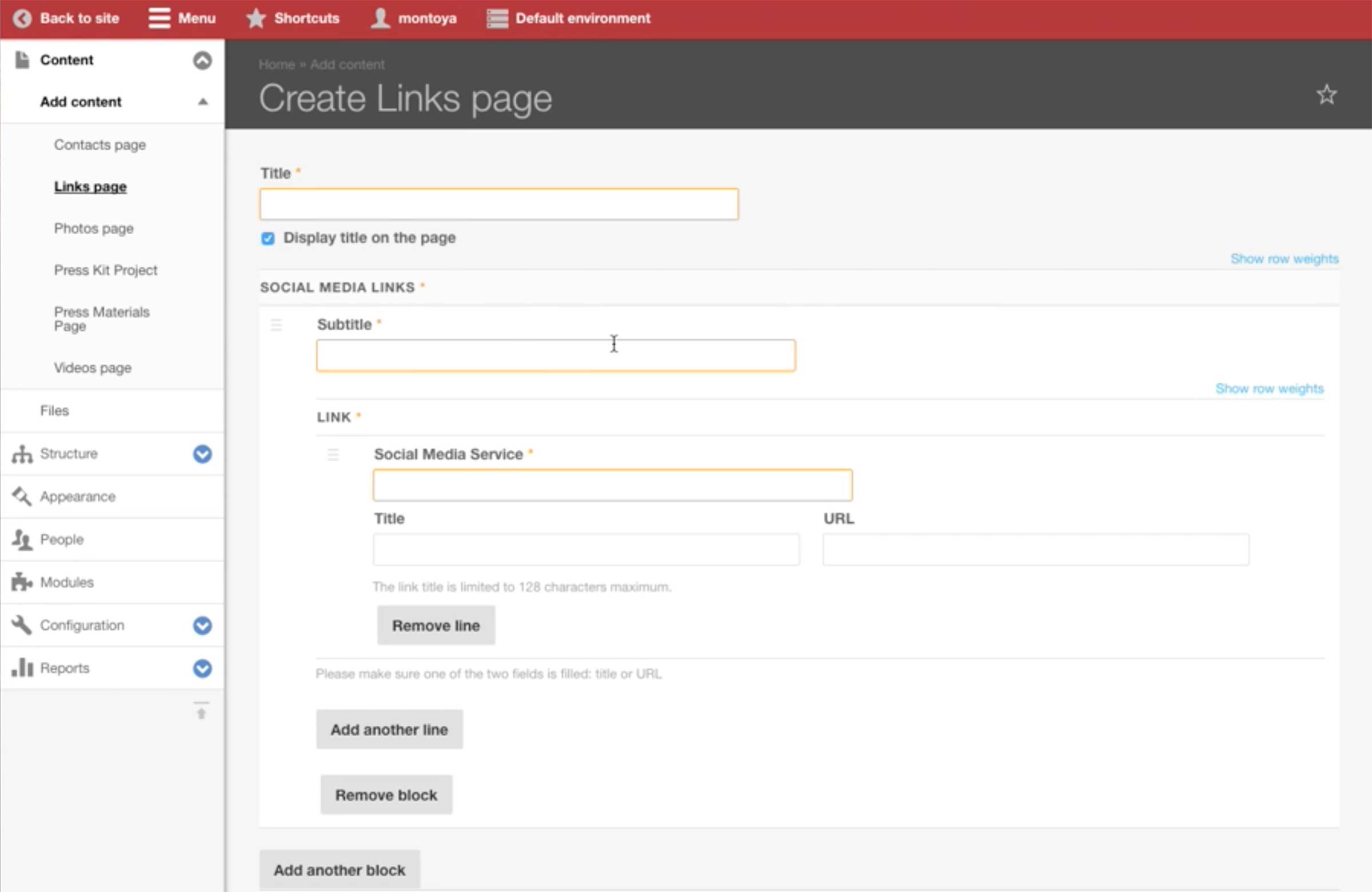
This is a new Links page.
Subtitle: Section’s title (e.g. Syfy, 12 Monkeys)
Social Media Service: Platform’s title that appears as a label before the links (e.g. Website, Facebook)
Title: The link text (e.g. @Syfy, Syfy.com)
URL: The link URL
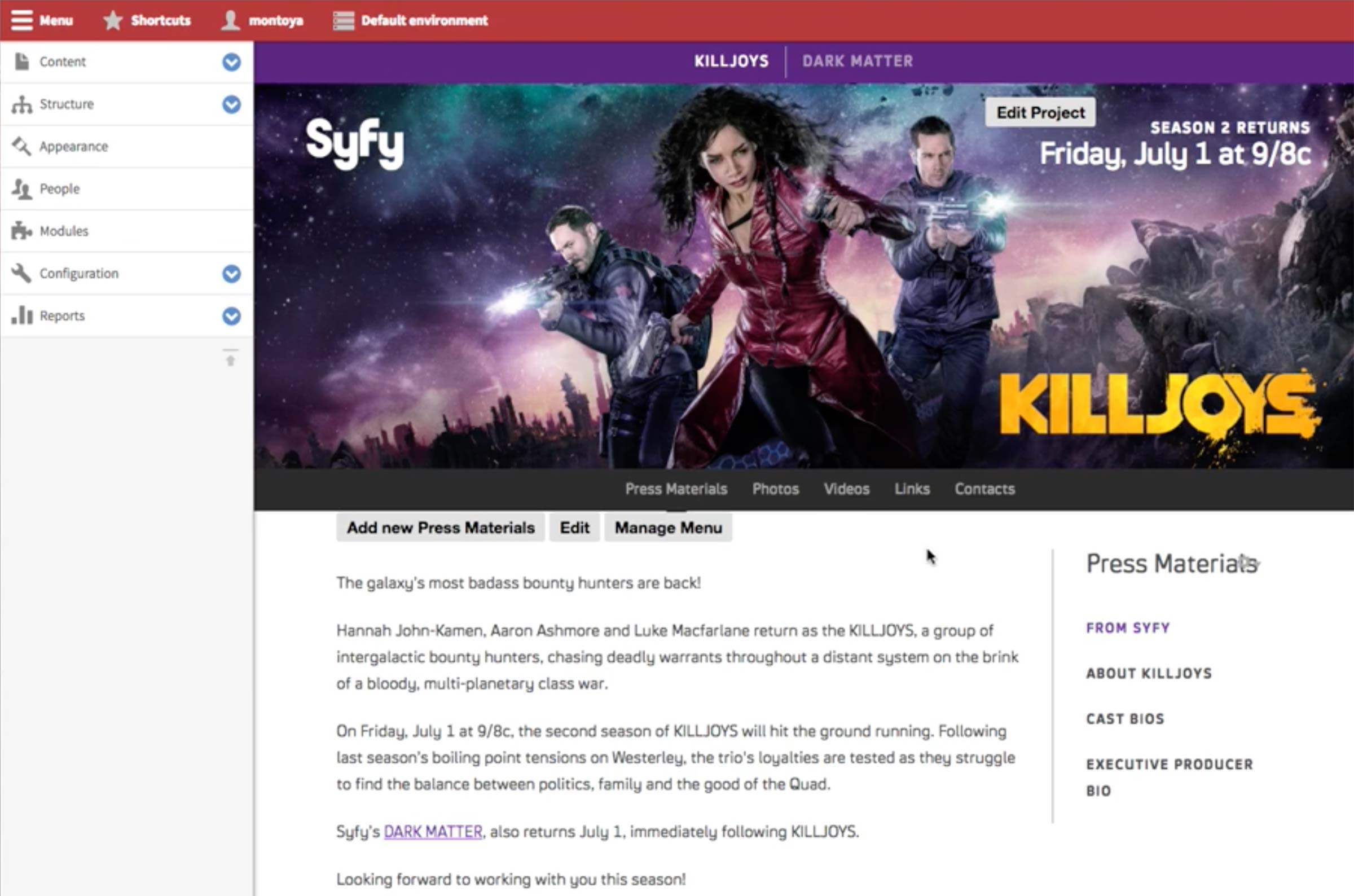
Once the Press Kit page is built out, it can be previewed with the site’s design. Edit Project button redirects to the edit page of the Press Kit Project, and Edit button does to the edit page of the Press Kit.
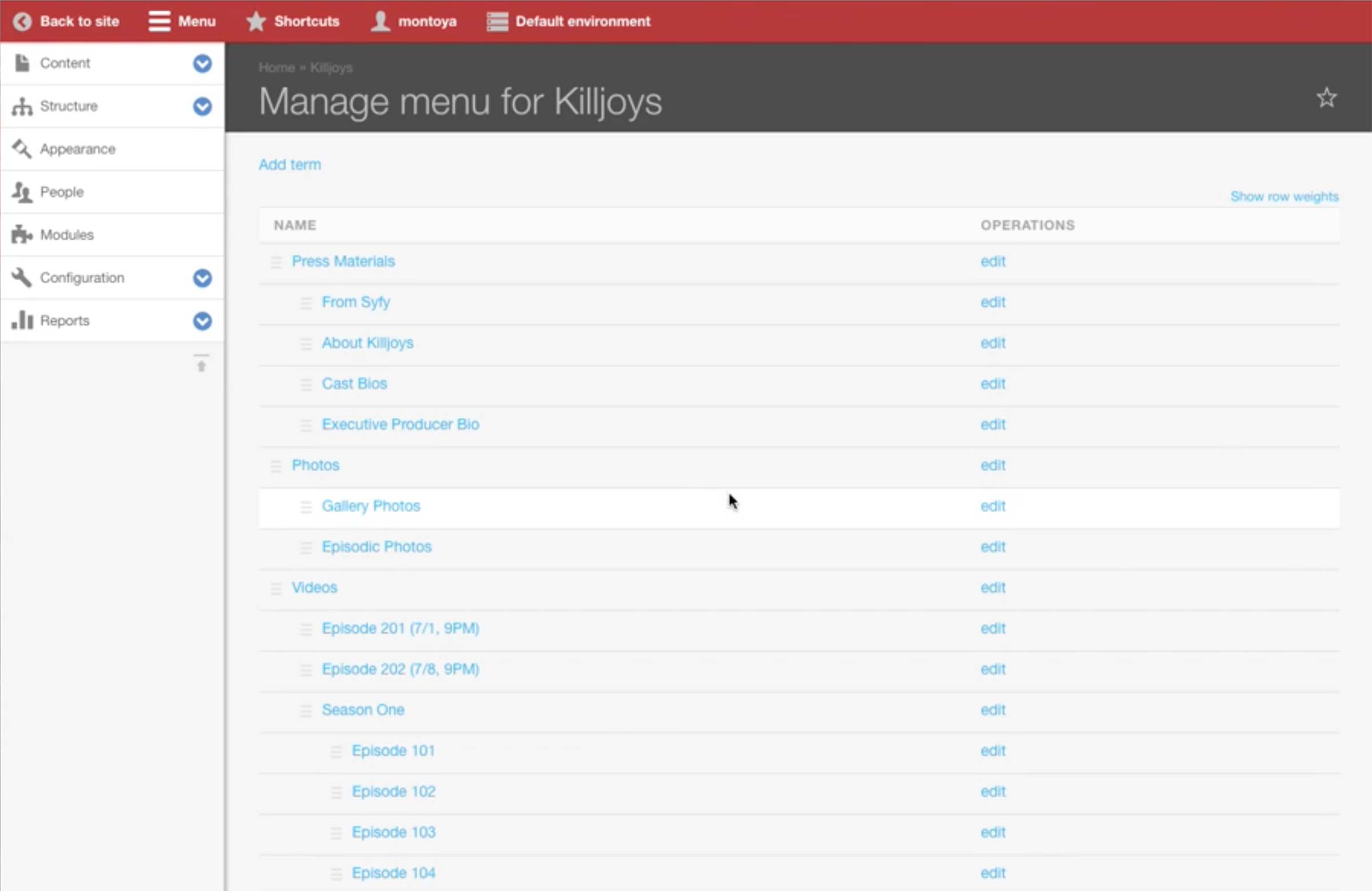
This is the view after hitting the Manage Menu from the preview. Here, press team can go to the edit page of all pages that belongs to this Press Kit and move around the hierarchy of the pages.